I deleted my text by mistake: how to recover it and avoid it next time
Published on October 14, 2026
Selecting everything and hitting the wrong key, pasting over your text, someone wiping a shared note: losing text happens to everyone. Most of the time you can get it back, as long as you act in the right order and do not keep editing on top of it.
First: stop typing
The first instinct is usually to rewrite from memory. Do not do that yet. Every new change can push the good version out of the history. Take a breath, stop editing and follow the steps below, from the quickest to the most thorough.
1. Undo (Ctrl+Z)
If the text just vanished and the page is still open, the browser’s undo usually does it: Ctrl+Z on a computer (Cmd+Z on a Mac) or your phone keyboard’s undo gesture. It works inside the text box as long as you do not reload the page.
2. Version history
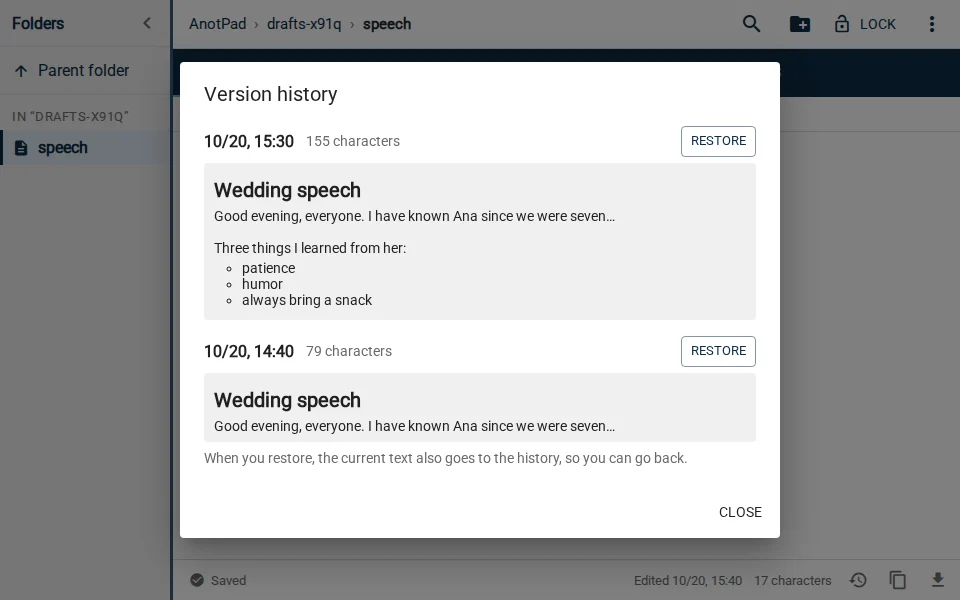
AnotPad automatically keeps the last 2 versions of the text while you edit: every few minutes and, above all, when a large part of the text is deleted at once. That is exactly the case when you select everything and delete it.
- In the note’s bottom bar, click the clock icon (Version history).
- Look at the saved versions, with the date and time of each one.
- Pick the right version and restore it.
When you restore, the current text also goes into the history. So if you restore the wrong version, you can go back.
3. Other devices and copies
If none of that works, think about where else the text might be: a tab open on another device that has not received the change yet, a section you sent to someone in a message, an email or a screenshot. Sometimes the recovery is somewhere you had forgotten about.
When several people edit the same note
In a shared note, the person who deleted the text may not have been you. AnotPad warns you when someone changes the note while you are typing and lets you choose between loading the new version or keeping your text. If someone deleted and saved, version history works the same way for everyone.
For summaries and lists that many people read but few need to change, share with "Copy read-only link". That way, people who only need to read are not at risk of deleting something by mistake.
What cannot be recovered
The history keeps only the last 2 versions. If you keep editing for a long time after the loss, the old versions get replaced. And when a note is deleted from the ⋮ menu, its text, history and files are gone for good: that action has no undo. That is why the app asks for confirmation before deleting.
Attached files deleted by mistake can be restored with the "Undo" button that shows up right after the deletion.
Habits that prevent the scare
- For long, important texts (a paper, a speech), copy them somewhere else from time to time, such as a document on your computer.
- Split very large texts into several notes inside a folder. Besides being tidier, a mistake only affects one part.
- Before pasting something big, check that the cursor is in the right place and no text is selected.
- In shared notes, agree on who can edit what.
In short
Stop typing, try undo, then version history. In most cases the text comes back in seconds. For what really matters, keep a copy outside the note.
Read also
- How to choose note names nobody can guess (and you will not forget)Why the name is the note’s key, and a simple recipe for safe names.
- How to write drafts without getting stuck: a four-step methodDump, organize, write and revise: each step in its own time.
- Keyboard shortcuts to take notes faster in your browserThe editing shortcuts everyone should know, plus AnotPad’s own.