Keyboard shortcuts to take notes faster in your browser
Published on October 14, 2026
Taking your hand off the keyboard to grab the mouse seems minor, but it happens hundreds of times a day. With a dozen shortcuts you can write, fix, search and switch notes without breaking your train of thought. You do not need to memorize them all at once: learn two or three a week.
Editing shortcuts that work almost everywhere
These shortcuts work in any text box in your browser, including notes. On a Mac, use Cmd instead of Ctrl and Option instead of Alt.
| Shortcut | What it does |
|---|---|
Ctrl + Z / Ctrl + Shift + Z | Undo / redo the last change |
Ctrl + ← / Ctrl + → | Jump a whole word left or right |
Ctrl + Shift + ← / → | Select word by word |
Home / End | Go to the start or end of the line |
Ctrl + Home / Ctrl + End | Go to the start or end of the text |
Ctrl + Backspace | Delete the whole word before the cursor |
Shift + arrows | Select letter by letter or line by line |
Ctrl + F | Find a word in the open page |
The pair that saves the most time is Ctrl + Backspace with Ctrl + arrows. Instead of deleting letter by letter, you delete and jump whole words.
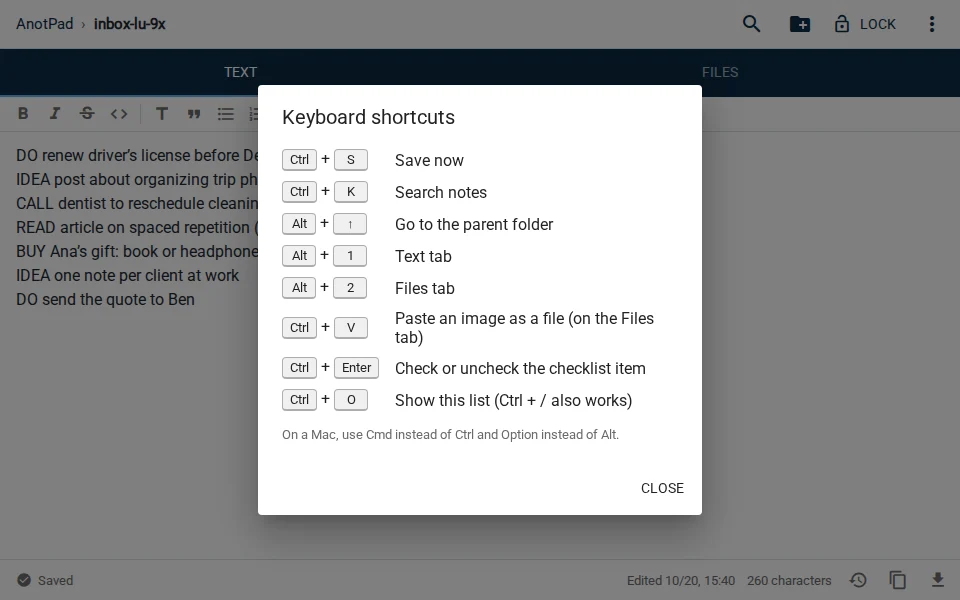
AnotPad shortcuts
Inside a note, these shortcuts handle what the browser does not do on its own:
| Shortcut | What it does |
|---|---|
Ctrl + S | Save right now (saving is already automatic, but sometimes you want to be sure) |
Ctrl + K | Search the names and text of the notes in the folder |
Alt + ↑ | Go to the folder above |
Ctrl + Enter | Tick or untick the checklist item |
Alt + 1 / Alt + 2 | Switch between the Text and Files tabs |
Ctrl + O | Show the list of shortcuts |
AnotPad’s Ctrl + S also stops the browser from opening the "save page as" window, which is what would happen on a regular website.
Browser shortcuts for working with several notes
| Shortcut | What it does |
|---|---|
Ctrl + L | Select the address bar: type another note’s name and press Enter |
Ctrl + T | Open a new tab |
Ctrl + Tab | Go to the next tab |
Ctrl + Shift + T | Reopen the last closed tab |
Ctrl + D | Bookmark the current page |
Ctrl + L is especially handy in a notepad by address: to open another note, you type the address directly, without going through the home page. Over time, the browser itself autocompletes the names you use most.
Pasting without formatting
When you copy a passage from a website or a document, colors, fonts and links often come along. In a plain text box that does not show, but elsewhere it gets in the way. Ctrl + Shift + V pastes only the text, without formatting, in most browsers and apps.
How to learn without memorizing
- Pick two shortcuts from this page that solve something you do every day.
- Write them on a sticky note next to the keyboard, or in a note.
- For a week, every time you reach for the mouse for that task, stop and use the shortcut.
- The next week, pick two more.
In a month you use eight shortcuts without thinking, and they cover most of the time you spend writing.
In short
Start with the editing shortcuts (Ctrl + Backspace, Ctrl + arrows, Ctrl + Z), then AnotPad’s (Ctrl + K to search, Alt + ↑ to go up a folder) and finally the browser’s (Ctrl + L to jump straight to another note). If you forget one, Ctrl + O shows the list inside the note.
Read also
- Online notes without sign-up: how to start in one minute and what to know firstHow to start in a minute, what you gain and what you give up without an account.
- Online checklist: how to make a to-do list you can tick item by itemHow to create, tick and organize a simple checklist, with shortcuts and examples.
- How to share a note by link: editing, read-only and QR codeA link to edit together, a read-only link and a QR code, with the limits of each.