Online checklist: how to make a to-do list you can tick item by item
Published on October 14, 2026
Not every list needs a project management app. Shopping, a packing list, the week’s tasks and the steps of a move work better as a simple checklist that you open, tick and close. Here is how to build one that works.
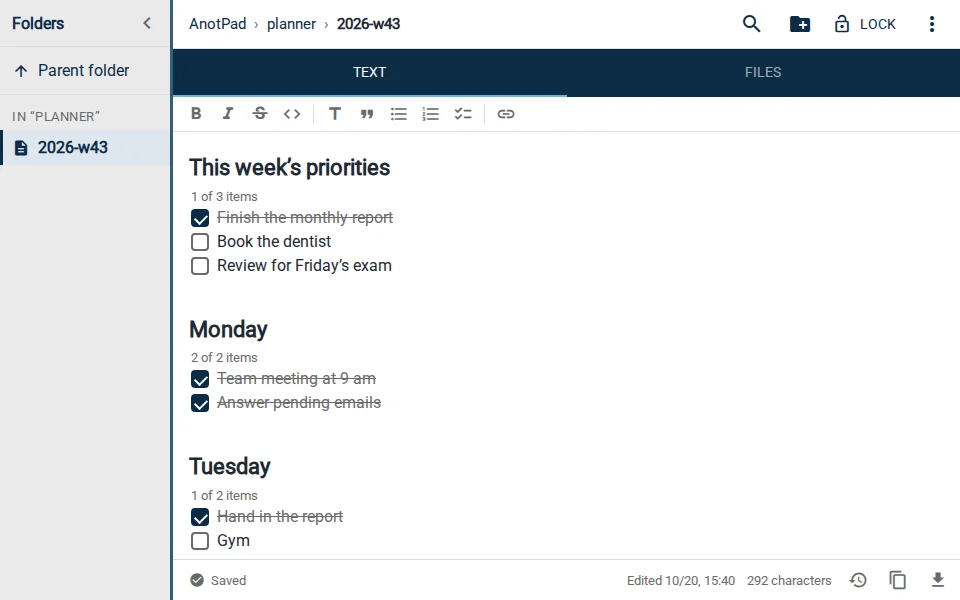
Creating the checklist
- Open a note and click the "Checklist" button in the formatting bar (the icon with two ticked boxes).
- Type the first item and press Enter: the next item is born with its checkbox.
- To end the list, press Enter on an empty item.
- Tap or click the checkbox to tick it. The item turns gray with a strikethrough.
You can also type "[] " (brackets and a space) at the start of a line: it becomes a task item. And if you already have a regular list, select the lines and use the button to turn it all into a checklist at once.
Shortcuts that save time
| Action | How |
|---|---|
Next item | Enter at the end of an item |
Tick or untick | Click the checkbox or Ctrl + Enter on the item |
Leave the list | Enter on an empty item |
Back to normal text | The "Checklist" button again |
When the list has two or more items, a counter above it shows your progress, for example "3 of 8 items".
Split it into sections
A list of 30 items in a row is tiring. Use headings to separate blocks and keep a checklist under each. Every section gets its own counter, so you see what is left in each part.
- Shopping: produce, bakery, pantry, cleaning.
- Packing: documents, clothes, toiletries, electronics, medicine.
- Week: priorities, then one block per day.
- Move: 30 days before, 2 weeks before, the week of, the day.
A shared checklist
Since the note is an address, sending the link turns the checklist into a shared list: what one person ticks shows up for the others in real time. It is the simplest way to split the household shopping or to agree on who brings what to a party.
If you want people to see the list without touching it, use "Copy read-only link" in the ⋮ menu.
Reuse lists that repeat
Weekly shopping, packing and routines repeat. Instead of starting over, untick the items (or use version history to go back to the earlier state) and reuse the same note. The ready-made templates already come with organized checklists that you customize and use again.
When a task app is better
A simple checklist has no due dates, automatic priorities or notifications of its own. If you need deadlines that alert you, recurring tasks or assigning owners with follow-up, a task app makes more sense. For one-off alerts, you can create a calendar reminder from the note (⋮ menu › Create reminder).
In short
The "Checklist" button, Enter for the next item, a click to tick. Split it into sections, share when it makes sense and reuse the lists that repeat.
Start from a ready-made template
Read also
- How to share a note by link: editing, read-only and QR codeA link to edit together, a read-only link and a QR code, with the limits of each.
- AnotPad or Google Keep: which one for your notes?Where each one is better, plainly: accounts, sharing, features and privacy.
- How to keep recipes online: a family cookbook that does not get lostA template, folders by dish type and ways to share with the family.