How to share a note by link: editing, read-only and QR code
Published on October 14, 2026
Sharing a note should be as simple as sending a message. In a notepad by address, it is: the note is the link. But there are three ways to share, and each fits a different situation.
Three ways to share
| Way | When to use it |
|---|---|
Regular link | To edit together: the household shopping list, meeting notes, a group trip itinerary |
Read-only link | To show without inviting edits: a summary for the class, a recipe for a friend |
QR code | To open the note on another device or show it to someone next to you |
To edit together: the regular link
The note’s own address is already the link to edit. Copy it from the address bar and send it in a message. Whoever opens it sees the current text, and everyone’s changes show up in real time, without reloading the page.
If two people edit at the same time, AnotPad warns whoever was typing and lets them choose between loading the new version or keeping their own text. The history keeps the last 2 versions, in case someone deletes something by mistake.
To show without editing: the read-only link
- Open the note and click the ⋮ menu.
- Choose "Copy read-only link".
- Paste the link into your message or email.
Whoever opens that link sees only that note, with no formatting bar, no folder panel, no search and no way to type. It is ideal for handing over a finished summary, recipe or meeting notes.
The read-only link is only a view that hides the controls. Anyone who deletes "?leitura=1" from the end of the address can edit again and see the folder panel. If the note must not be changed at all, send a copy of the text, not the original note’s link.
For your phone: the QR code
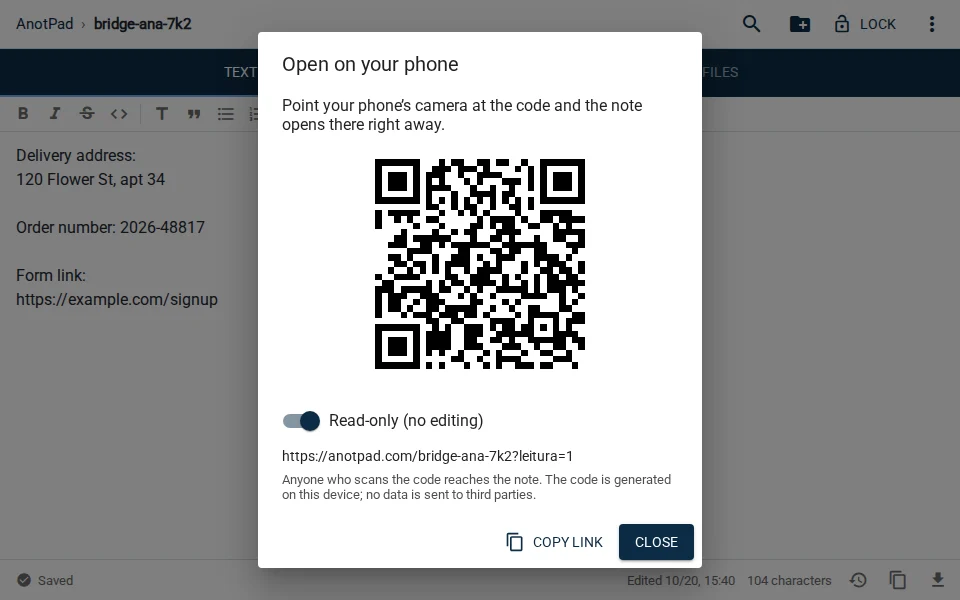
In the ⋮ menu, "Open on phone (QR code)" shows a code with the note’s address. Point your phone’s camera at the screen and the link opens right away. It works for continuing on your phone what you started on your computer, and for passing the note to someone next to you without typing the address.
The dialog comes with "Read-only" turned on, so a code shown in meetings and classes does not allow editing. Turn it off to generate an editing code. The QR code is generated on your device, and nothing is sent to third parties.
Before sharing, check
- Is the note’s name hard to guess? The easier the name, the easier for someone to reach the note without being invited.
- Is there anything in it that should not be seen by everyone who gets the link? Passwords, personal data and confidential information do not belong in notes by address.
- Is the note inside a folder with other notes? Whoever opens the regular link sees the names of the other notes in the same folder in the side panel and can open them. The read-only link shows neither the panel nor search, only that note. To give editing access to a single note, keep it out of folders that hold other subjects.
- Need an extra barrier? The "Lock" button asks for an email and a password before showing the text.
When to stop sharing
Once the project, trip or meeting is over, the simplest way to end access is to delete the note from the ⋮ menu. If you still need the text, copy it elsewhere first, or create a new note with another name and send the new link only to whoever should keep access.
In short
A regular link to work together, a read-only link to show, a QR code to switch devices. In every case the address is the key: pick a name that is hard to guess and share only what can be seen by whoever receives the link.
Start from a ready-made template
Read also
- AnotPad or Google Keep: which one for your notes?Where each one is better, plainly: accounts, sharing, features and privacy.
- How to keep recipes online: a family cookbook that does not get lostA template, folders by dish type and ways to share with the family.
- What to pack for a trip: a list by trip type and how not to forget anythingA base list, what to change by trip type and a routine to check before leaving.