How to send text from your phone to your computer without a cable or email
Published on October 14, 2026
You copied an address on your phone and need it on your computer. Or you wrote a long text on your laptop and want to read it on the bus. It sounds simple, yet almost everyone ends up messaging themselves. There are faster ways, and each one has its moment.
The usual ways, and where each one gets in the way
Before choosing, it helps to see why the usual methods are so annoying. Almost all of them were made for something else and only "also work" for moving text between devices.
- Messaging yourself: it works, but the chat becomes a dump of links and the text loses its formatting. To find something from last week, you have to scroll through everything.
- Emailing yourself: slow to open, requires signing in on both devices, and fills your inbox with subject-less messages.
- USB cable or Bluetooth: good for big files, terrible for three lines of text.
- Synced clipboard: fast, but only works between devices from the same maker and with the same account.
- A notes app with an account: great if you already use one, but it means installing and signing in on every device, including the computer at work or school.
The shortest way: a note with an address
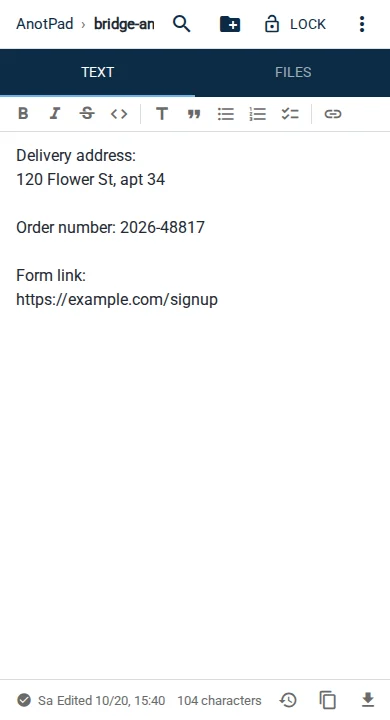
A note by link works as a "bridge" between devices. You pick a name, type on your phone and open the same address on your computer. The text shows up on the other side right away, without reloading the page, because both devices are looking at the same note.
- On your phone, open anotpad.com and type a name for the note, for example bridge-ana-7k2.
- Paste or type the text. It saves on its own; the bottom bar shows "Saved".
- On your computer, type anotpad.com/bridge-ana-7k2 in the address bar.
- Copy what you need. To send something back, type on the computer and the phone shows it right after.
The first time, you type the address. From then on it shows up in the recent notes on the home page and in your browser history, so a tap is enough.
Even faster: the QR code
If you have the note open on your computer and want to continue on your phone, you do not need to type the address. In the ⋮ menu, "Open on phone (QR code)" shows a code; point your phone’s camera at the screen and the note opens right away. The code comes with the "Read-only" option on, and you can turn it off to open the note ready to edit.
If you use the bridge every day, it is worth installing AnotPad as an app ("Install app" button on the home page, when the browser allows it): it gets an icon on your phone and opens in its own window.
Pick a name only you know
Since anyone who knows the address can open the note, a name like "test" or "phone" is a bad idea: someone may land on it by chance. Combine an easy word with a few random characters, like bridge-ana-7k2 or drafts-x91q. It is easy to type and hard to guess.
Do not use the bridge for passwords, verification codes, card details or personal documents. For that, use your phone’s password manager.
What about an image or a PDF?
The same note has a Files tab. On a computer you can drag the file onto the page or paste an image with Ctrl+V; on a phone, use the "Attach file" button. Each file can be up to 2 MB, and photos are shrunk automatically before upload, which usually keeps a screenshot well below that limit.
For videos or large files, the bridge is not the way: use a cloud storage service or the cable.
Situations where this really helps
- A borrowed or school computer where you do not want to sign in to your email.
- A text you started on your phone while waiting in line and want to finish with a keyboard.
- A long link that needs to open on the TV or the living room computer.
- A delivery address, a ticket number or a list someone read to you over the phone.
- A code snippet or command you found on your phone and need to paste into a terminal.
Clean up afterwards
A bridge note does not need to keep everything forever. When you are done, clear the text or delete the note from the ⋮ menu. If you delete something by mistake, the clock icon in the bottom bar shows the last 2 versions and lets you restore one.
If you use the bridge every day, give it folders, like bridge-ana-7k2/links and bridge-ana-7k2/texts. That way links do not mix with drafts, and it is easy to clear only what has already been used.
In short
For a few lines of text, a link or a screenshot, a note with an address is the shortest path between two devices: no account, no dependence on the device maker, and it works in any browser. For large files or sensitive information, use the tools built for that.
Read also
- Shared shopping list: how to set up one the whole family actually usesA store-section template and a few simple house rules that make the list work.
- Class notes: how to organize them by subject and review for examsA folder per subject, a note template and a 15-minute review routine.
- How to write simple meeting notes (with a ready-to-copy template)A lean template and what to write before, during and after the meeting.