Note reminders in your calendar: never forget what you wrote down
Published on October 14, 2026
Writing something down solves half the problem. The other half is remembering to open the note at the right time. The most reliable way to do that is the calendar already on your phone, because it alerts you even when you are not thinking about it.
Why the calendar, and not another reminders app
You already check your calendar every day, it already syncs across your devices and it already knows how to ring at the right time. Putting the reminder there, with the note’s link inside the event, joins both things: the alert comes from the calendar and one tap takes you straight to the text.
There is also a privacy upside: AnotPad does not store the reminder or ask for your email. Your calendar app does the alerting; AnotPad only builds the event for you.
Step by step
- Open the note and tap the ⋮ menu › Create reminder.
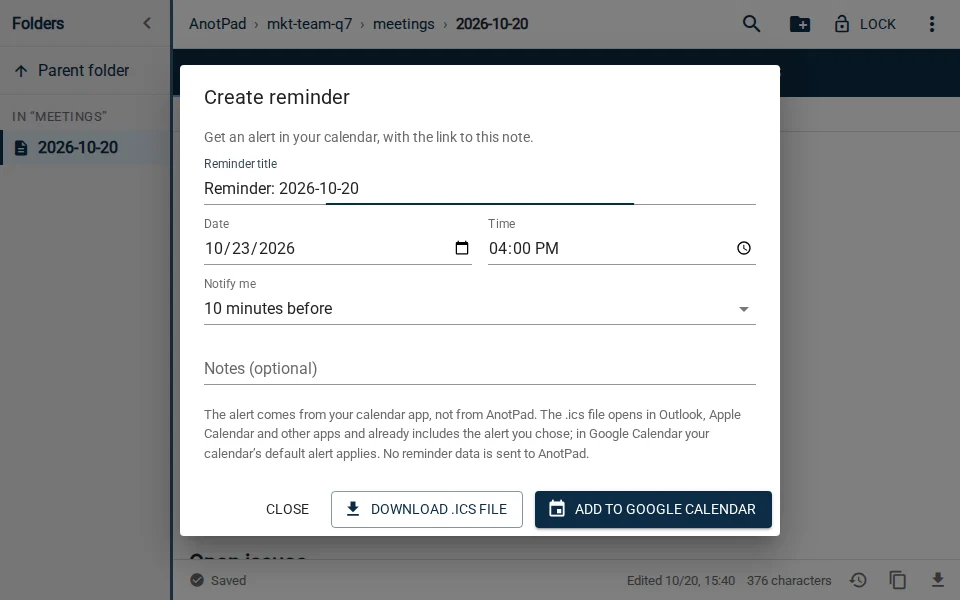
- Check the title (it already includes the note’s name) and choose the date and time.
- Under "Notify me", choose when to be alerted: at the time, 10 minutes before, 1 hour before or 1 day before.
- Optionally, add a note, such as "bring documents".
- Tap "Add to Google Calendar" or "Download .ics file".
Google Calendar opens in a new tab with the event filled in; just confirm it. The .ics file opens in Outlook, Apple Calendar and other calendar apps, and already includes the alert you chose. In Google Calendar, your calendar’s default alert applies.
When a reminder really helps
- Deadlines: a project due date, a bill, a document renewal. The note holds the details; the reminder makes sure you open it in time.
- Meetings: create the reminder from the note with the agenda. When it is time, one tap opens the agenda.
- Study reviews: one reminder a day after class and another a week later, pointing to the class note.
- Shopping and chores: "buy Ana’s gift" with the list of ideas in the note.
- Follow-ups: "chase the quote" in three days, with the history in the note.
When not to use one
Too many reminders become noise, and you learn to ignore noise. Do not create a reminder for things without a date or for things you would do anyway. A good rule: if missing the time has no consequence, it does not need a reminder.
Also avoid putting sensitive information in the event notes. The event lives in your calendar and may show up on your phone’s lock screen.
Pairing reminders with folders
One deadlines note per area (work/deadlines, home/bills, college/deadlines) plus a reminder for each important date make a simple system: the note is the full list, sorted by date in year-month-day format, and the calendar alerts you one by one. When a deadline passes, strike or delete the line in the note.
Common questions
If I change the note, does the reminder change? The reminder carries the note’s link, not a copy of the text. So when you open it from the event, you always see the latest version.
Can I edit or delete the reminder later? Yes, right in your calendar, like any other event.
Can people with the note’s link see my reminders? No. The reminder lives only in your calendar.
Start from a ready-made template
Read also
- Moving house checklist: what to do 30 days before, the week of and on the dayTasks split by deadline and a simple system to number and find your boxes.
- I deleted my text by mistake: how to recover it and avoid it next timeWhat to try first, how to use version history and habits that prevent the scare.
- How to choose note names nobody can guess (and you will not forget)Why the name is the note’s key, and a simple recipe for safe names.